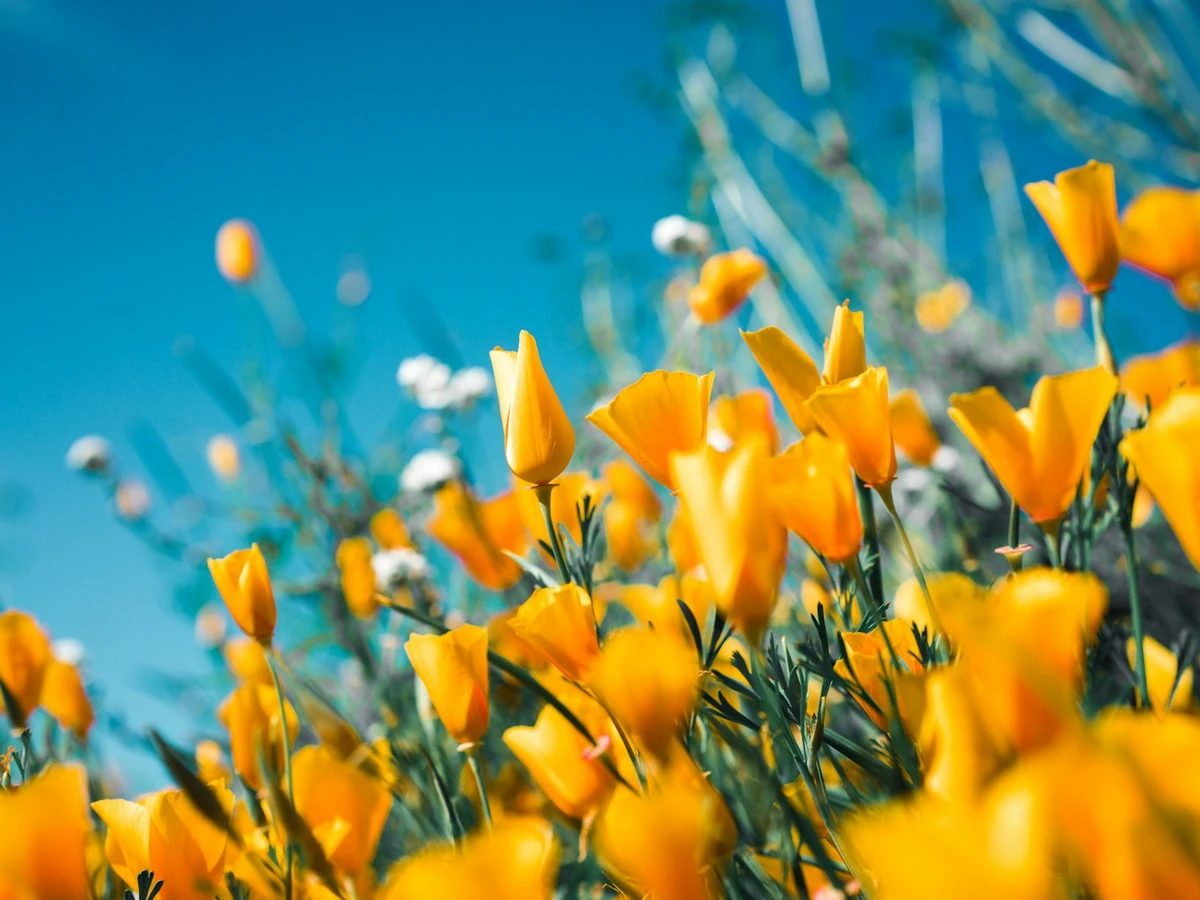
Original
No effect · 100% opacity
Free image fader · no sign-up
Make a photo quietly see-through, blend one edge into a slide, or soften a whole picture. Export a real transparent PNG or WebP at full size — all inside your browser.
See it work
A gradient fade, a feathered edge and an even opacity change. The gradient and feather examples use a real alpha channel, so the checkerboard is the only thing that is not in the file.
No effect · 100% opacity
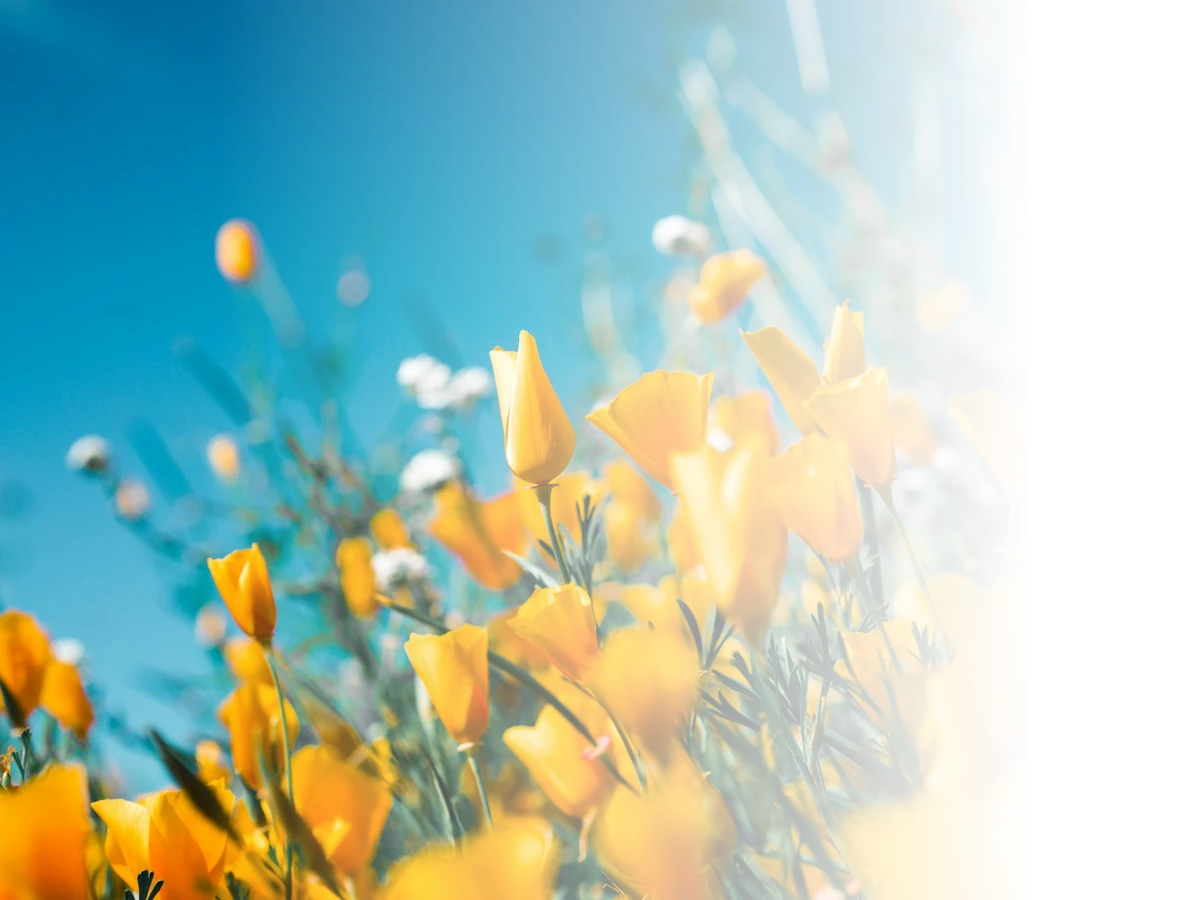
Linear · 0° · range 18–86%
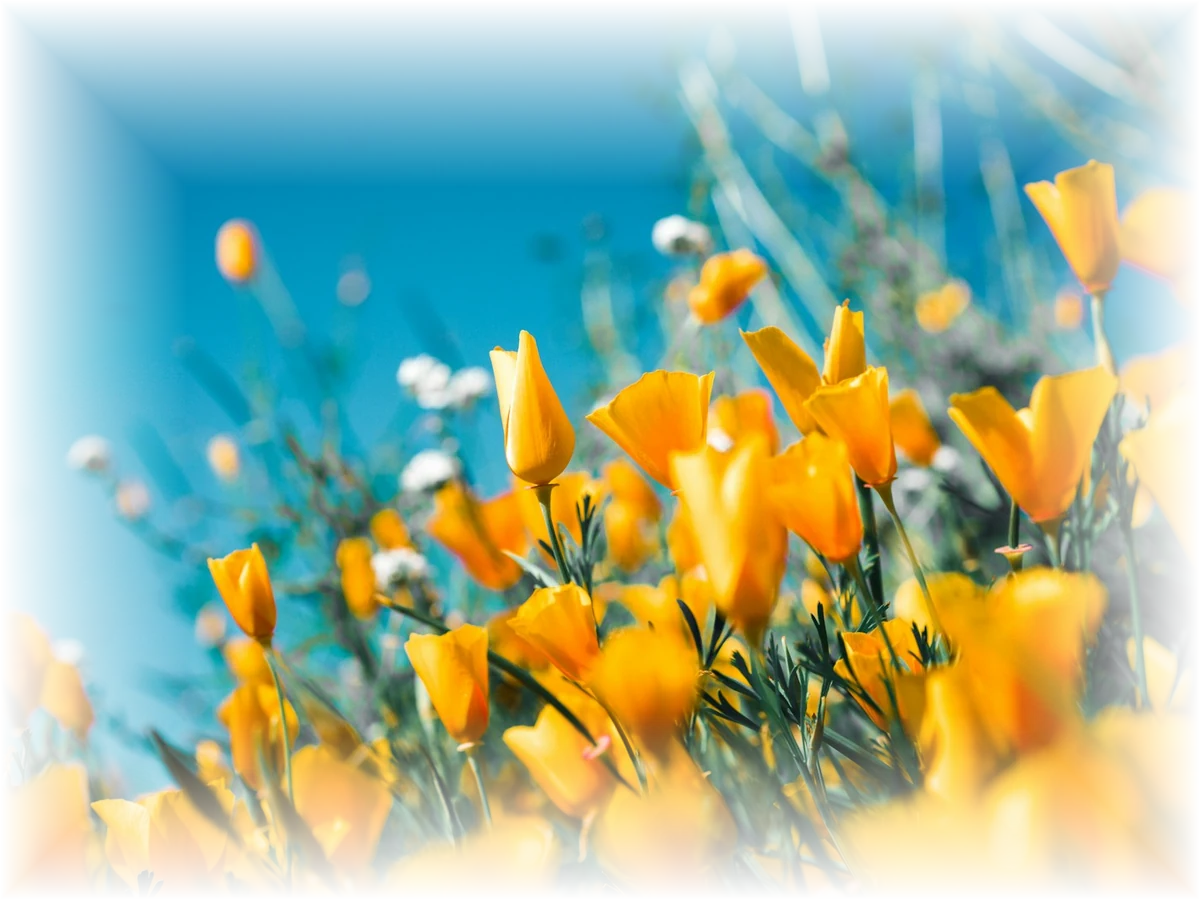
All edges · 26% width · 80% softness
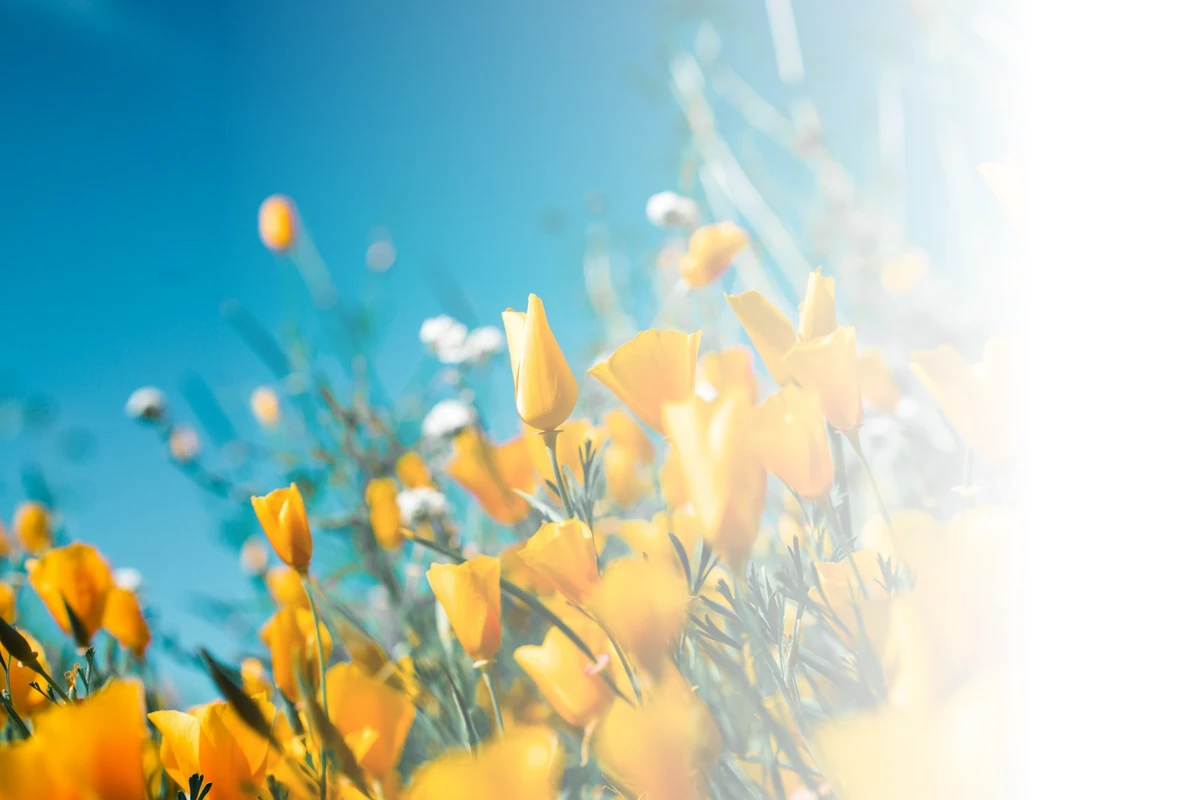
A white gradient is opaque paint. On a dark slide or a coloured panel it appears as a grey rectangle.
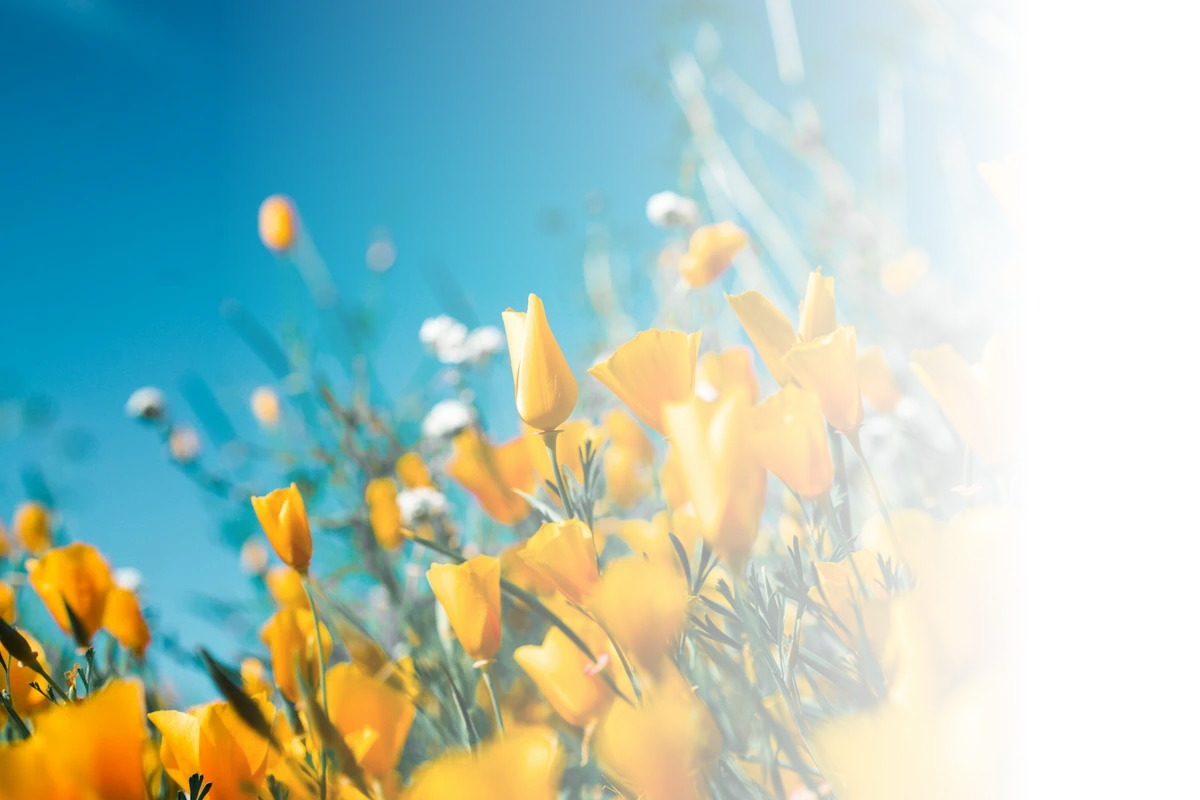
The same fade exported as a transparent PNG. Pixels are partly see-through, so the slide colour shows through.
Built for transparency
ImageFade changes transparency, not colours. It is a clean image fade, not a vintage filter or an animated fade-in, and it will not guess a background for you.
Linear, radial and sector fades with draggable A/B handles. Set the range, reverse the direction, and fade exactly the side you need.
Exports keep an 8-bit alpha channel, so a faded PNG looks right over dark slides, coloured panels or another photo.
Fade a rectangle, an ellipse, a brushed area or just the edges. Feathered selections keep the transition soft instead of clipped.
No account, no upload, no watermark. The file is read, faded and exported on your device, and closing the tab clears it.
Three simple steps
Clear labels and useful presets get you started, while sliders and canvas handles keep precise control close at hand.
Drag a PNG, JPG or WebP into the editor, paste a screenshot, or browse your device. Files up to 60 megapixels are supported.
Choose a mode, try a preset, then adjust the sliders or drag the handles. Hold “Compare” to check the original at any time.
Download a PNG or WebP at the original dimensions, or copy the result straight into your slide, poster or design app.
Common use cases
A softer edge solves the awkward seam between a photo and everything around it.
Fade the right side of a photo, then place a headline in the empty space. The PNG sits cleanly over your slide colour.
Soften a hard crop into a cover or banner. If you need to fade image edges, start with 25% feathering on all edges, then reduce the width around your subject.
Drop overall opacity to 25–40% for a gentle watermark, or lower it further for a background image that never fights the text.
The details
An image fader lowers the alpha value of pixels. Alpha is the fourth channel in a PNG or WebP file, separate from red, green and blue. When alpha drops, the pixel keeps its colour but becomes partly see-through — so whatever sits behind it, from a dark slide to a page of text, shows through.
That is different from painting a white gradient over a photo. A white overlay is still opaque: it looks correct only on a white page, and turns into a pale block everywhere else. An image fade made with ImageFade writes transparency into the file, so the same export works on any background.
Most photos need a fade in one of three places: a whole image that should sit quietly behind text, one edge that needs to dissolve into a layout, or a specific region that should be removed from attention. The four modes map directly to those jobs — overall opacity, gradient fade, edge feather and local opacity. Whether you want to fade image edges, create a soft image fade behind a headline, or erase one area, the controls stay the same.
Gradient and feather fades are resolution independent. The preview is scaled to fit your screen, but the export re-renders the same fade at the image's native pixel size, up to 60 megapixels.
Both keep the alpha channel. PNG is the safest choice for PowerPoint, Google Slides, print and older software. WebP produces a smaller file and includes a quality slider, which is handy for websites. JPG cannot store transparency, so it is deliberately not an export option.
FAQ
Short answers to the questions that come up most often.
Yes. The image fader is free, needs no account, and adds no watermark. You can fade and export as many images as you like.
No. The file is decoded, faded and exported inside your browser. There is no upload endpoint, so the picture never leaves your device.
They describe the same thing from opposite sides. Opacity at 100% means fully visible, while 0% means fully transparent. The editor labels sliders as opacity to match CSS and design tools, so 25% opacity is a faint watermark and 75% is a slight fade.
Yes. Choose Gradient fade, pick a direction such as left to right, then adjust the fade start and end or drag the A and B handles on the canvas. The rest of the image stays fully visible.
Use Edge feather. Pick rectangle edges or an ellipse focus, choose which sides to soften, then set the feather width and edge softness. This blends a hard crop into a slide or page background.
Both formats keep transparency. PNG is the safest choice for slides, print and older software. WebP usually produces a smaller file and has a quality slider. A JPG would flatten the transparency, so it is not offered.
No. The editor scales only the on-screen preview. Exports use the original pixel dimensions, up to 60 megapixels.
Yes. The canvas responds to touch. Use a rectangle or ellipse selection, or paint with the brush, then lower the selection opacity and export from the sticky mobile bar.
Fade it in seconds, export real transparency, and drop it into the layout you already have. No sign‑up, no watermark, no upload.